The Promise
I’ll be honest: the idea of Cowork excited me. An AI agent that lives on my desktop, manages files, automates tasks - the kind of thing that makes you feel like you’re living in the future. Point it at a workspace, give it a job, go make coffee.
So I installed it on Windows. Clicked the button. Waited.
And then Cowork looked me dead in the eyes and said: “The Claude API cannot be reached from Claude’s workspace.”
Which is a weird thing to say when I’m literally on the internet right now.
Two Error Messages, Zero Clarity
Cowork doesn’t fail with one error. It fails with two, and they look like completely different problems.
Error 1 (the misleading one):
“The Claude API cannot be reached from Claude’s workspace…”
Your first instinct: is Anthropic down? You check. There isn’t an outage. You can resolve api.anthropic.com from your terminal. Port 443 is open. Your host machine has internet. Everything is fine.
Except nothing is fine.
Error 2 (the real one, hidden behind “longer loading”):
CLI output was not valid JSON … Output: sandbox-helper: host share not mounted at /mnt/.virtiofs-root/shared: not a mount point
There it is. Buried in the second error message like a confession at the bottom of a Terms of Service. The VM’s filesystem is broken, the CLI process outputs an error string instead of JSON, and Cowork’s parser falls over because it expected structured data and got a cry for help.
Two symptoms. Three root causes. One very confused developer.
And here’s the part that really bothers me: Anthropic is positioning Cowork squarely at non-technical users. Knowledge workers. The marketing says “Claude Code power for the rest of your work.” If I - someone who debugs Hyper-V networking as a semi-regular hobby - spent hours in PowerShell diagnosing this, a non-dev user has exactly zero chance. They see “API unreachable,” they Google it, they find nothing useful, and they uninstall. That’s not a speed bump - that’s a product cliff with no guardrail.
What’s Actually Happening Under the Hood
Here’s the thing the “API unreachable” error doesn’t tell you: Cowork doesn’t run on your machine. Not really.
Cowork runs inside a dedicated Linux VM - a full virtual machine running on Hyper-V (Windows’ built-in hypervisor, the same technology that powers WSL2 and Docker Desktop). Under the hood, Cowork talks to Microsoft’s Host Compute Service (HCS) - a low-level API for creating and managing VMs that sits beneath the friendlier tools like Hyper-V Manager. This means Cowork’s VM may not show up as a normal “VM” in Hyper-V Manager - it’s registered at the platform level rather than as a classic Hyper-V VM. But here’s what tripped me up: Cowork does not share WSL2’s VM. It’s not a distro running inside the WSL2 lightweight utility VM. It’s not piggybacking on Docker’s backend either. It boots its own completely independent virtual machine, with its own kernel, its own root filesystem, and its own networking stack.
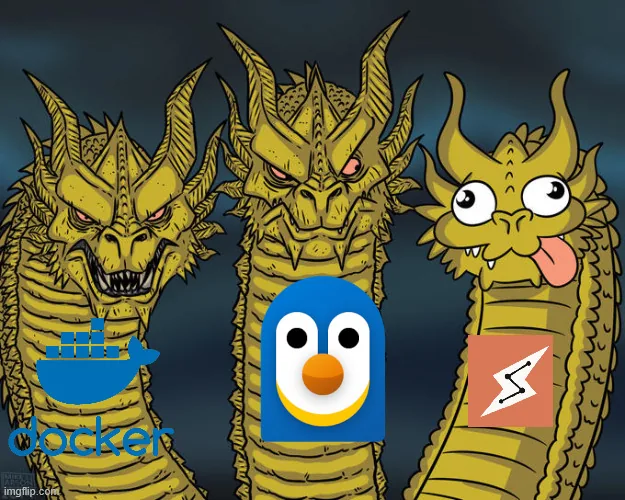
Think of Hyper-V as an apartment building. WSL2 is one tenant. Docker Desktop is another. Cowork moves in as a third - separate apartment, separate lease, separate plumbing. They share the building’s foundation (the hypervisor), but nothing else. When Cowork’s plumbing breaks, WSL2 keeps running fine. The reverse is also true - except for one fun bug where Cowork’s virtual network permanently breaks WSL2’s internet until you manually find and delete the offending network configuration using Windows’ HNS diagnostic tools. Good neighbors.
The whole thing is managed by a dedicated Windows service called CoworkVMService (cowork-svc.exe). The VM bundle lives inside Claude Desktop’s app data — on my machine (Microsoft Store install) it was at %LOCALAPPDATA%\Packages\Claude_*\LocalCache\Roaming\Claude\vm_bundles\claudevm.bundle\ (some non-Store installs use %APPDATA%\Claude\vm_bundles\claudevm.bundle\). It contains a ~9.4 GB Linux root filesystem (rootfs.vhdx - VHDX is Hyper-V’s virtual hard disk format), a Linux kernel (vmlinuz), an initial RAM disk for bootstrapping (initrd), and a persistent state disk (sessiondata.vhdx) that stores the VM’s session data between restarts. That last file becomes very relevant in about three paragraphs. On macOS, Cowork uses Apple’s Virtualization Framework instead of Hyper-V - same concept, different hypervisor, and roughly a month more maturity since it launched first.
The VM connects to the outside world through a virtual network adapter (vEthernet (cowork-vm-nat)) on its own private IP range (172.16.0.0/24). Two Windows services make this work: HNS (Host Networking Service) orchestrates the virtual network - think of it as the VM’s network card and cabling. WinNAT (Windows Network Address Translation) then provides the actual internet routing - it translates the VM’s private IP addresses into your host’s real ones so traffic can flow in and out. Without HNS, the VM has no network. Without WinNAT, the VM has a network that goes nowhere.
Host folders get shared into the VM via VirtioFS, a high-performance file sharing protocol designed for virtual machines (similar to how Docker mounts host directories into containers). Your workspace folder appears inside the VM at /mnt/.virtiofs-root/shared/.
When either the networking or the filesystem sharing breaks, Cowork doesn’t degrade gracefully - it faceplants into error messages that point everywhere except the actual problem.
The Diagnosis: Three Layers of Broken
I pulled up an admin PowerShell and started poking. What I found was a layer cake of failure - each layer independently capable of killing Cowork, and all three broken simultaneously.
Layer 1: The VM’s Network Adapter Had No DNS
Get-DnsClientServerAddress -InterfaceAlias 'vEthernet (cowork-vm-nat)'
ServerAddresses : {}
Empty. The virtual network adapter that Cowork’s VM uses to resolve domain names had no DNS servers configured. The VM was living in a world where domain names were a theoretical concept.
Meanwhile, the host was merrily resolving DNS on its own adapters, completely unaware that its VM tenant was sitting in the dark.
Layer 2: WinNAT Was Just… Gone
This is the one that really got me. The virtual network existed - HNS (the service that manages Cowork’s virtual network, remember) showed it, subnet 172.16.0.0/24, gateway 172.16.0.1, all looking perfectly normal:
Get-NetNat
Output: nothing. Empty. The WinNAT object that’s supposed to provide outbound internet access for the VM’s subnet simply wasn’t there.
The VM had an IP address. It had a gateway. It had a virtual switch. What it didn’t have was a NAT rule to actually translate its traffic to the outside world. A house with a front door and a brick wall where the street should be.
The Cowork VM logs confirmed it:
API reachability: PROBABLY_UNREACHABLE
And later, having given up on optimism:
API reachability: UNREACHABLE
This is a known issue, by the way. Multiple users have reported it. The installer creates the virtual network via HNS but doesn’t reliably create the corresponding WinNAT rule that gives that network internet access. And if you’re running VPN software, it gets worse - VPNs are fundamentally incompatible with Cowork’s NAT setup because VPN split-tunnel rules don’t apply to NAT’d VM traffic. The VPN doesn’t know Cowork’s VM exists. It can’t route for a tenant it’s never met.
Layer 3: The VM’s Virtual Disk Was Corrupted
Even if networking were perfect, Cowork still wouldn’t have started. Remember sessiondata.vhdx? The VM’s persistent state disk? It was in an inconsistent state, which meant the VirtioFS host share - the file sharing bridge between your Windows folders and the VM - failed to mount.
The sandbox helper process tried to set up the environment, discovered the mount point was broken, and printed an error to stdout. The Cowork CLI, expecting a stream of JSON, got plaintext instead. Parser meets unexpected input. Parser loses.
sandbox-helper: host share not mounted at /mnt/.virtiofs-root/shared: not a mount point
That’s the line that produces the “CLI output was not valid JSON” error. Not a JSON problem. Not a CLI problem. A filesystem problem wearing a JSON mask.
The Fix: Three Commands and a File Rename
Once you know what’s actually broken, the fix is almost anticlimactic.
Fix 1: Give the VM DNS
$alias='vEthernet (cowork-vm-nat)'

# In my case: my LAN resolver + Cloudflare as fallback
Set-DnsClientServerAddress -InterfaceAlias $alias -ServerAddresses @('10.0.0.45','1.1.1.1')
Clear-DnsClientCache

Restart-Service CoworkVMService -Force
You can verify it took:
Get-DnsClientServerAddress -InterfaceAlias 'vEthernet (cowork-vm-nat)'
# Before: {}
# After:  {10.0.0.45, 1.1.1.1}
If you have specific DNS requirements (corporate resolvers, etc.), swap in whatever makes sense for your environment.
Fix 2: Recreate WinNAT
Windows 11 Home note: Some users report
Get-NetNat/New-NetNataren’t available or fail on Home editions (missing NetNat/WMI components). If you’re on Home, you may be dealing with a different class of problem than “missing NAT rule” and may need a different workaround or a supported Windows edition.
This is the big one. Without this, the VM has no internet - period.
New-NetNat -Name cowork-vm-nat -InternalIPInterfaceAddressPrefix 172.16.0.0/24
Name          : cowork-vm-nat
Active        : True
Two lines. That’s it. The entire difference between “API unreachable” and a working Cowork instance is a single New-NetNat call that Windows silently decided not to persist.
Fix 3: Reset the VM State
The corrupted sessiondata.vhdx needs to go. But we’re cautious, so we rename instead of delete:
$svc='CoworkVMService'

# Auto-detect bundle path (Store install uses a versioned package folder)
$bundle = (Get-Item "$env:LOCALAPPDATA\Packages\Claude_*\LocalCache\Roaming\Claude\vm_bundles\claudevm.bundle" -ErrorAction SilentlyContinue).FullName
if (-not $bundle) { $bundle = "$env:APPDATA\Claude\vm_bundles\claudevm.bundle" }

$session=Join-Path $bundle 'sessiondata.vhdx'
$bak="$session.bak.$(Get-Date -Format 'yyyyMMdd-HHmmss')"

Stop-Service $svc -Force
Rename-Item -Path $session -NewName (Split-Path $bak -Leaf)
Start-Service $svc
In my case, Cowork created a fresh sessiondata.vhdx on next start. The old one sits there timestamped, waiting for the forensic investigation you’ll never do. If your install never creates sessiondata.vhdx at all - or it’s still broken after this - you’re likely hitting a different setup bug and may need a full reinstall.
After the Fixes
Restart everything properly - and I do mean properly:
- Quit Claude Desktop from the system tray (not just closing the window - actually Exit)
- Restart
CoworkVMServiceif it isn’t already running - Relaunch and point Cowork at a simple, local workspace path (not OneDrive, not a library - a plain
C:\SomeFolder) - If it still flakes, temporarily disable VPN/tunnel adapters and try again
That last point deserves emphasis. VPN software, network tunnels, and virtual adapters are the most common reason Windows “loses” NAT rules or DNS configurations for Hyper-V virtual switches. Remember: Cowork’s VM has its own networking stack, completely separate from WSL2 and Docker. When your VPN reconfigures routing tables, it doesn’t know or care that there’s a third VM that also needs internet.
Debugging Depth Meter: [████████░░] 8/10

  Layer 1: DNS empty on VM adapter - annoying but diagnosable
  Layer 2: WinNAT missing entirely - invisible unless you know to check
  Layer 3: VM disk corrupted - produces an error that looks like a JSON bug
  Bonus:   VPN adapters silently antagonizing all of the above
Why This Was Hard to Find
The error messages are the real villain. “API unreachable” sends you down the wrong path entirely - you start checking Anthropic’s status page, your firewall, your proxy settings. The second error about invalid JSON sounds like a Cowork bug. Neither says “your Windows NAT layer is missing and your virtual disk is corrupted.”
The diagnostic path requires you to already know that Cowork runs its own dedicated Hyper-V VM (not inside WSL2, not Docker’s VM - its own independent instance via HCS), that this VM relies on WinNAT for internet access, and that VirtioFS mounts can go stale when sessiondata.vhdx gets corrupted. That’s not something a normal user would ever figure out. It’s barely something a developer would figure out without falling down the right rabbit hole.
And that’s the core tension. Cowork is marketed at the people least equipped to debug it when it breaks. The fix is three PowerShell commands, but the path to discovering those three commands requires knowledge that Anthropic’s target audience definitionally does not have.
The relevant logs live in %LOCALAPPDATA%\Packages\Claude_*\LocalCache\Roaming\Claude\logs\ (Microsoft Store install) or %APPDATA%\Claude\logs\ (non-Store install) - specifically cowork_vm_node.log for VM networking status and main.log for the CLI/sandbox errors. If you’re hitting anything like what I described, start there.
FAQ (Partially Helpful, Fully Honest)
Why did WinNAT disappear? Best guess: a Windows Update, a VPN install, or a Hyper-V reconfiguration silently cleared it. Windows doesn’t warn you. It just lets NAT rules evaporate like a goldfish releasing a memory.
Will this happen again? Probably. WinNAT has the persistence of a New Year’s resolution. Check Get-NetNat after major updates.
Wait, so Cowork, WSL2, and Docker are all separate VMs? Not exactly. WSL2 runs a lightweight utility VM, and multiple WSL2 distros share that same underlying VM/kernel. Docker Desktop can run either inside WSL2 (as the docker-desktop distro) or as a separate Hyper-V VM depending on configuration. Cowork appears to run work in its own isolated VM environment and creates its own networking artifacts (like cowork-vm-nat). Three tenants, one building, zero coordination on plumbing.
Does Cowork break WSL2? It can. Issue #26216 documents Cowork’s virtual network (managed by HNS) permanently breaking WSL2’s internet. The fix is deleting the cowork-vm-nat network entry via Get-HnsNetwork | Where-Object { $_.Name -eq "cowork-vm-nat" } | Remove-HnsNetwork, which you’ll need to redo every time Claude Desktop recreates it.
Is this a Cowork bug or a Windows bug? Both. The error messages are Cowork’s fault - surfacing “WinNAT missing” instead of “API unreachable” would save hours. But Windows silently dropping NAT configurations isn’t Cowork’s doing. It’s Cowork trusting Windows to hold its drink. Windows dropped it.
Can a non-developer fix this? No. And that’s the problem worth talking about.
The Takeaway
Three layers of broken. Three commands to fix. Two hours to figure out which three.
The root cause, stripped of narrative: Cowork’s Linux VM - a dedicated Hyper-V instance, separate from WSL2 and Docker - lost outbound internet because Windows dropped the NAT rule, lost DNS because the virtual adapter was misconfigured, and couldn’t mount host folders because the virtual disk was corrupted. Each failure produced a different symptom, none of which pointed at the actual problem.
If you’re on Windows and Cowork won’t start, run Get-NetNat and check whether Get-HnsNetwork | Where-Object { $_.Name -eq "cowork-vm-nat" } returns anything. An empty Get-NetNat combined with an existing cowork-vm-nat HNS network is a strong signal you’re in the “missing NAT rule” failure mode. Everything else is cleanup.
And yes, I debugged a Linux VM networking issue by writing PowerShell. The year is 2026 and nothing makes sense.